Set mining direction
The mining direction defines the order in which the resource works through the activity area during scheduling. It runs along the centre of the polygon, from a start point (green triangle) to an end point (red square).
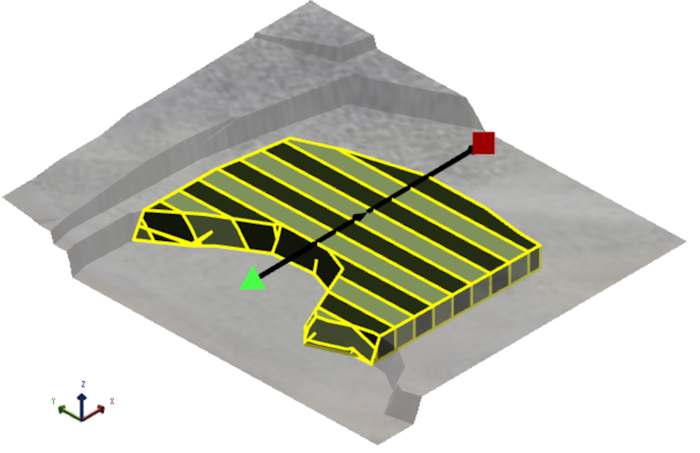
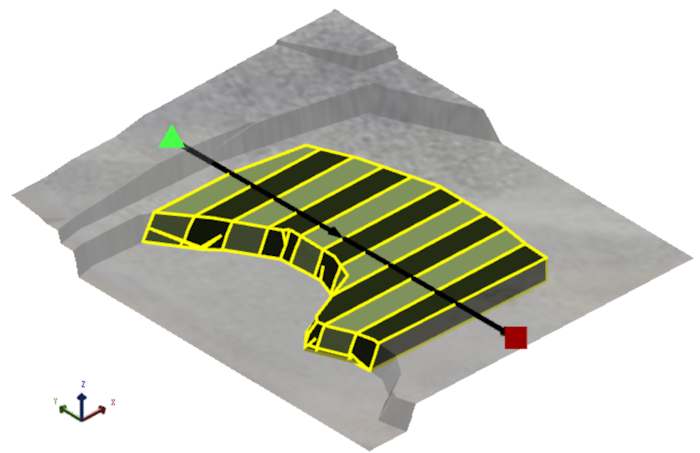
During scheduling and animation, the area is mined in horizontal slices, progressing along this direction. Setting the correct mining direction ensures the schedule reflects the actual operational approach and avoids conflicts between equipment.
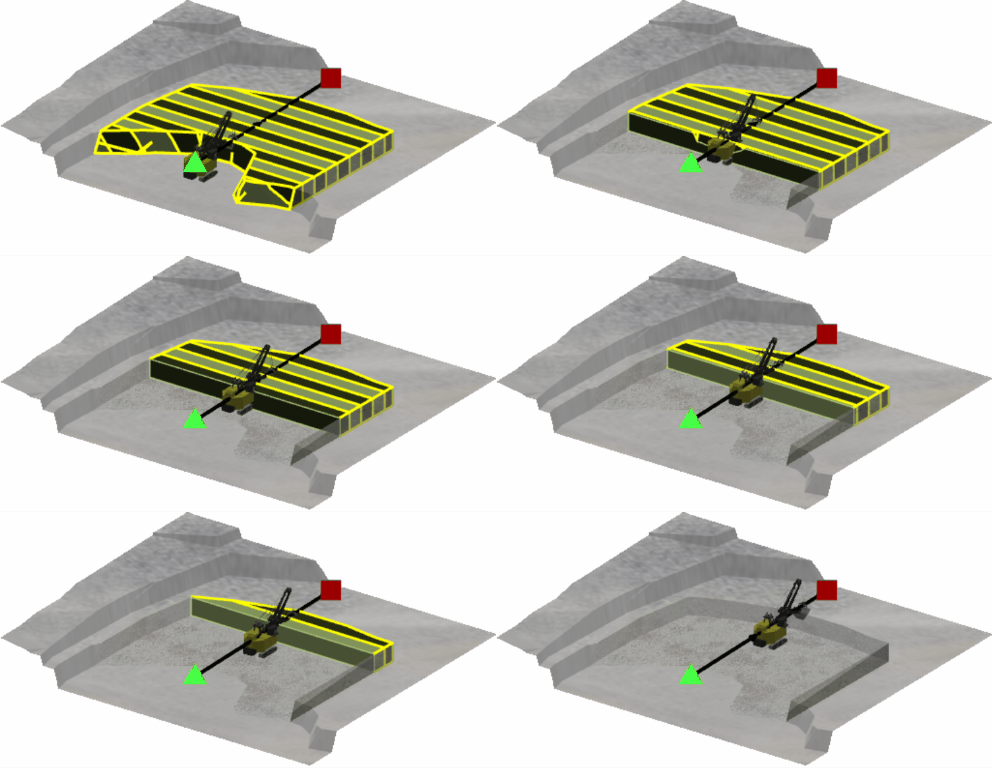
A resource mining an activity area in its mining direction.
You can change the mining direction of an activity area at any time. This is useful if the original direction no longer reflects the operational plan or if the shape of the area has been edited significantly.
Refer to Draw activity areas for information about setting the initial mining direction.
Change the mining direction
Change the mining direction
-
In Client, right-click the activity area in the 3D scene.
-
Select Edit Mining Direction from the radial menu.
A direction arrow appears on the activity area:
-
Green triangle = start point.
-
Red square = end point.
-
-
Drag either end of the arrow to rotate it.
The arrow remains centred on the polygon while you adjust its angle.
-
When you’re satisfied with the direction, click anywhere outside the polygon to confirm.
Tips for accuracy
Follow these tips to ensure the mining direction is set correctly:
-
Use plan view (Down
 ) and Orthographic projection (Graphics Settings
  > 3D Settings) for precise alignment.
 -
Align the direction with the actual mining approach on site (e.g., toward a ramp or away from a wall).
-
After changing the direction, review the Slice view (Activity Area tab > Display Mode) to confirm that slices align with the new direction.